

Download the Certificate
Please click the link here to download the certificate required to use our Wi-Fi network.

Install The Certificate
iOS Installation Instructions


Click Allow after clicking to download the profile.
If prompted, select iPhone to apply the profile to your phone.
Select close and then navigate to your phone Settings app.
From the main Settings page, select Profile Downloaded
Click Install in the top right
Enter your passcode when prompted.
Select Install again from the top right.
Select Done and return to the main screen of the Settings app.
Select About from the main settings page to continue.
Scroll to the bottom of the About section and select Certificate Trust Settings
Check the slider next to the Fireware HTTPS Proxy and click continue when prompted.
You have now completed the setup steps and can use the Wi-Fi. Please note the Wi-Fi is monitored and filtered in line with Safeguarding policies.
Android Installation Instructions
These instructions are just a general overview, it may not apply for all Android phones, but should give a vague idea on what to do. If you are still struggling after reading throgh the instructions, please pop up to the IT office.
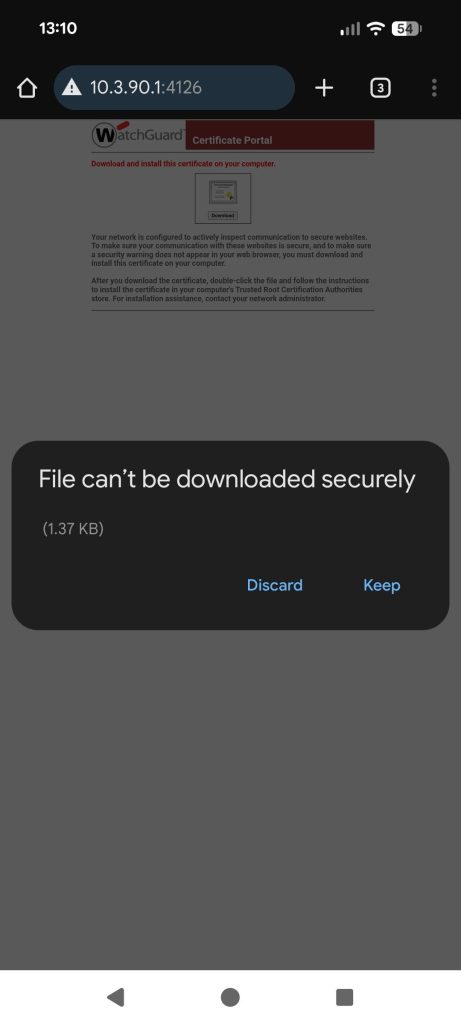
Tap on the Download button, the below error message may appear, tap on Keep
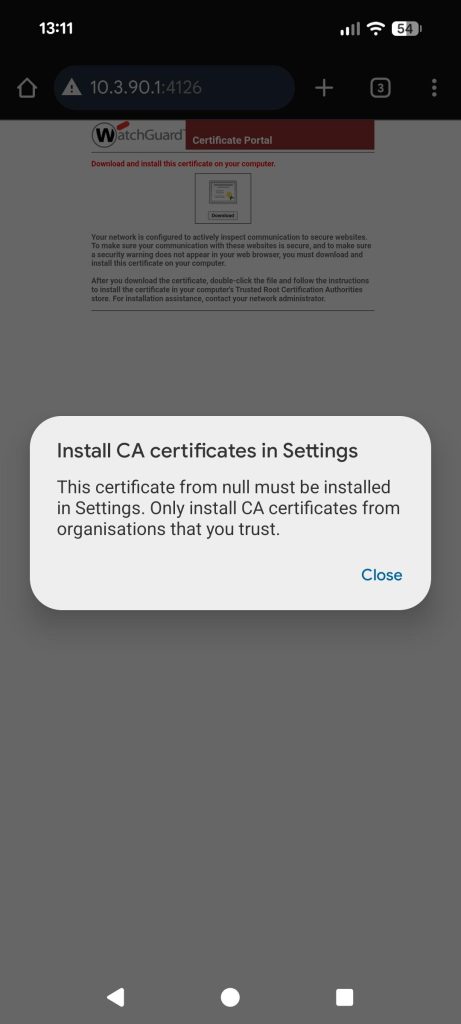
Once downloaded, the below message will appear, tap Close
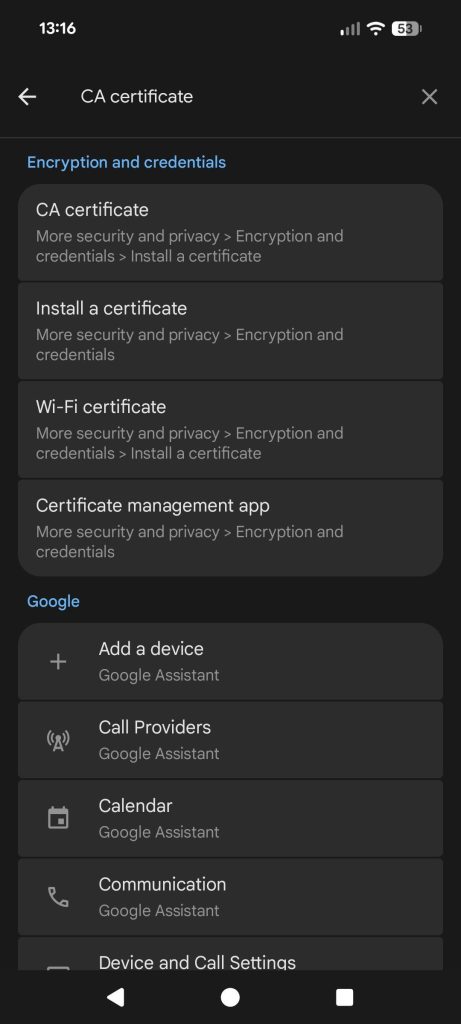
Open Settings and search for CA Certificate and tap on an option that allows you to install a certificate, in the example’s case, that is the CA certificate option.
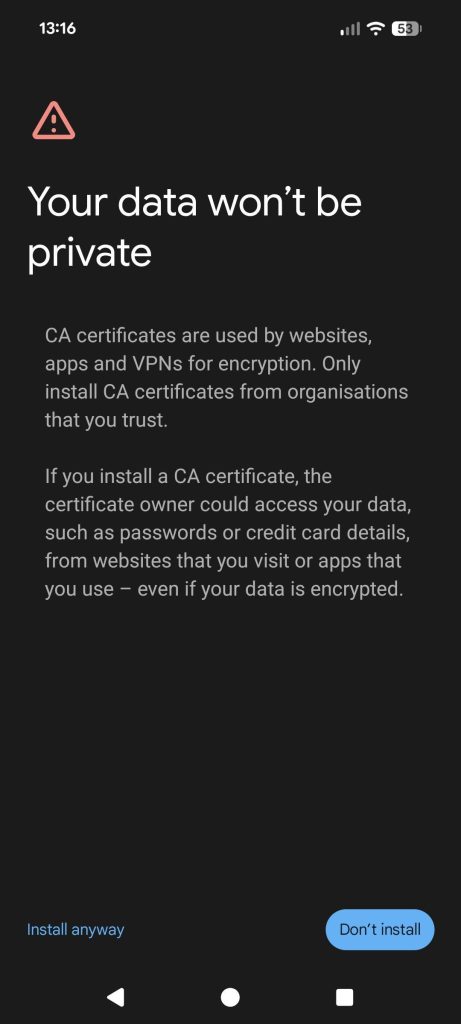
Once you select the option for installing a CA certificate, you may get a warning like the one below, select the option that allows you to install anyway, it may not be obvious at first, like the below image.
It will then take you to your Downloads, select the one that’s called Proxy CA.crt and it will then install the certificate, allowing you to have full access to the Internet.
Windows Installation Instructions


Double click the downloaded Certificate and then click the Install Certificate button at the bottom.
Ensure that you select Local Machine on the first screen of the wizard. Then keep clicking next without changing any settings until you finish the wizard.
In the start menu type in Manage computer certificates and open it. Navigate to Intermediate Certification Authorities > Certificates and locate the one named Fireware HTTPS Proxy. Drag and drop it into the Trusted Root Certification folder on the left hand side.
You are now ready to use the Wi-Fi. Please note that all internet access is monitored in line with Safeguarding policies.
Mac OS Installation Instructions


Double click the downloaded certificate.
ENsure the System Keychain is selected from the drop down and click next.
Authorize the change with your password or fingerprint as prompted..
Scroll to the certificate named Fireware HTTPS… right click and select Get Info
Click the Chevron next to trust to expand the settings
Change the drop down next to When using this certificate: to ALways Trustand click the red close button in the top left.
Authorise the change when prompted using your fingerprint or password.
You are now ready to use the Wi-Fi. Please note that all internet access is monitored in line with Safeguarding policies.